
Accessibility Toolbar

Accessibility Toolbar
The Accessibility Toolbar plugin helps make Moodle a more comfortable place to learn for everyone. Instead of asking learners to adapt to a fixed layout, it gives them personal controls to adjust how the platform looks and sounds, from fonts and colours to text-to-speech and screen filters.
Settings are saved to each account, so every learner's experience is tailored to them without affecting anyone else on the platform.
Features
Font & Text Control
Learners choose their typeface, scale text up or down, and adjust line height to match their reading comfort including fonts designed for dyslexia.
Colour Overlays & Contrast
Apply a tinted screen overlay in yellow, red, blue, or green to reduce visual stress. Three fully administrator customisable contrast schemes round out the palette options.
Zoom & Page Filters
Scale the whole page up or down with zoom controls. Fine-tune brightness, grayscale, sepia, saturation, and colour inversion via sliders in the Page Filters panel.
Text-to-Speech
Highlight any text on the page and have it read aloud using the browser's built-in voices. Multi-voice selection supported, with an automatic server-based fallback.
Spell Checker & Dictionary
Select any word to instantly check its spelling with correction suggestions, or look up its definition, pronunciation, and example sentences without leaving the page.
Saved, Personal Preferences
Every setting is saved to the learner's account not the device. Log in from any computer and your preferences are already applied. Reset to defaults in one click.

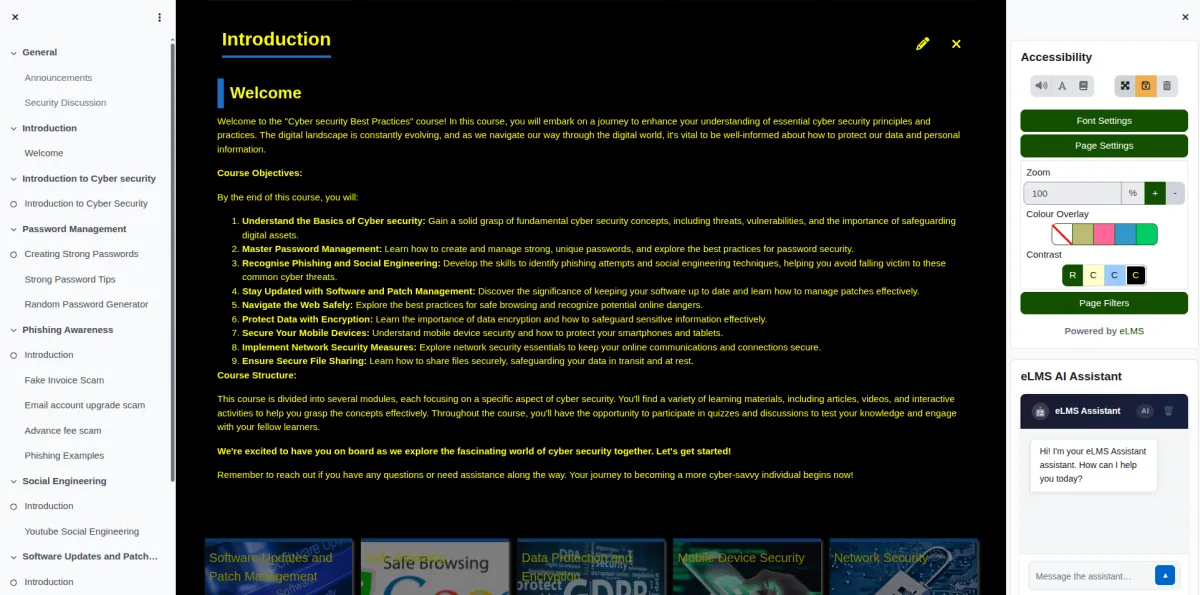
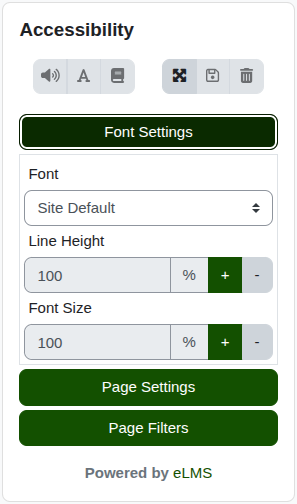
The toolbar sits in a Moodle sidebar block. No menus to navigate every control is visible at a glance in three collapsible sections.
Get Enhanced Accessibility


Frequently Asked Questions
Will my settings be remembered the next time I log in?#
Yes, as long as you clicked Save. Your preferences are stored on the server against your Moodle account, so they will be applied automatically on any device whenever you log in.
Do my adjustments affect other users on the platform?#
Not at all. Every change is completely private to your account. Other learners and administrators will see the platform exactly as it was configured your preferences are invisible to everyone else.
Does text-to-speech work without an internate connection?#
It depends on your browser. Some browsers have voices built in and work offline. If your browser's built-in voices are unavailable, the toolbar automatically falls back to a server-based voice, which does require a connection.
Can I customise the contrast colour schemes for my organisation?#
Yes. Styles 1, 2, and 3 are fully configurable by the Moodle site administrator in the platform settings. Each style's background and text colours can be set to match your organisation's accessibility requirements.
Can I undo all my changes and return to the platform defaults?#
Yes. Click the Reset Accessibility Settings button at the top of the toolbar. You'll be asked to confirm, and then all settings — saved and unsaved will return to the platform defaults in one step.